

The Post-Conversion Crisis: Why Alex Wasn’t Celebrating Yet
Alex, the founder of alextech.dev, felt a momentary sense of victory. Just an hour ago, he had successfully managed to bulk convert 100+ PNGs to WebP using the 1-click tool. He thought his website speed issues were over. He had followed the secret history of WebP and knew he was using the right format. However, when he ran his monthly content batch through a speed tester, the results were still in the "Amber" zone.
The images were in the right format, but they were still "heavy." Alex realized that converting a file is only half the battle; the real war is against the file size itself. He remembered reading how image size affects your website’s bounce rate, and he knew that even a 1-second delay could cost him 20% of his traffic. He had 100+ images ready for his articles, but they needed a "diet." They needed professional-grade compression.
The problem? Most tools he found online treated him like a stranger asking for a favor. "Upload 10 images max pr day," one site barked. "Pay $19.99 for bulk compression," another insisted. Alex was at a crossroads. Should he spend his entire night compressing images in batches of five, or was there a better way to handle 100+ images at once?
Chapter 1: The Frustration of "Artificial" Limits
Alex sat in his home office, the glow of the monitor casting a shadow over his tired eyes. He tried the most popular "Free" compressors on the first page of Google. One by one, they let him down. The first one had a beautiful UI but a hidden trap: after uploading his 11 images, a giant pop-up blocked his screen. "Daily limit reached. Sign up to continue."
As a startup founder, Alex’s time was his most valuable currency. He didn't want to create ten different accounts to bypass daily limits. He was also deeply concerned about privacy. These websites were asking him to upload his original business infographics—data he had worked hard to create. Were they storing his images? Who had access to them?
He calculated the math: if he used these limited tools, it would take him nearly three hours to finish his batch. Alex needed a tool that was as ambitious as he was. He needed a tool with no limits, no sign-ups, and a privacy-first approach.
Chapter 2: Discovering TheSoftCo Image Compressor
That’s when Alex returned to a name he now trusted: TheSoftCo. After his success with their WebP converter, he noticed they had a dedicated Free Online Image Compressor. The headline promised exactly what he needed: "Bulk, HD & Unlimited."
As he opened the tool, he noticed the clean, intuitive interface. It didn't look like a cluttered ad space; it looked like a professional workstation. There were specific panels for everything—uploading, filtering, and quality control. This wasn't just a simple script; it was a comprehensive image management system designed for power users who need to process hundreds of files without breaking a sweat.
Alex felt a surge of hope. He realized that his goal of making alextech.dev, the fastest tech blog in 2026, was finally within reach. He decided to document his process to help other creators who were stuck in the "Limited Converter" trap.
Chapter 3: Mastering the Interface (Step-by-Step Guide)
TheSoftCo Image Compressor is divided into logical panels that give you full control over your workflow. Alex started by examining the layout, which is designed for both speed and precision.
The Upload & Management Panel
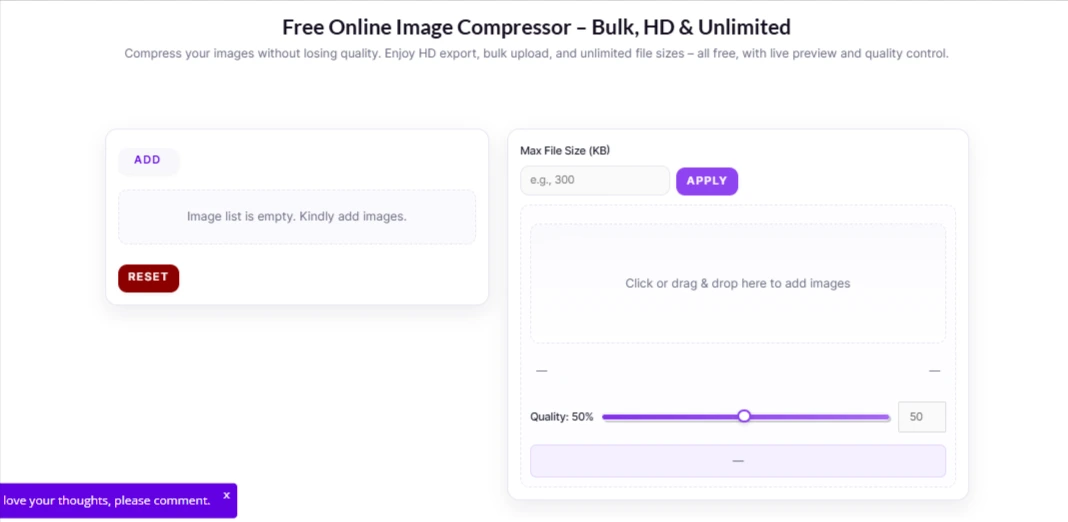
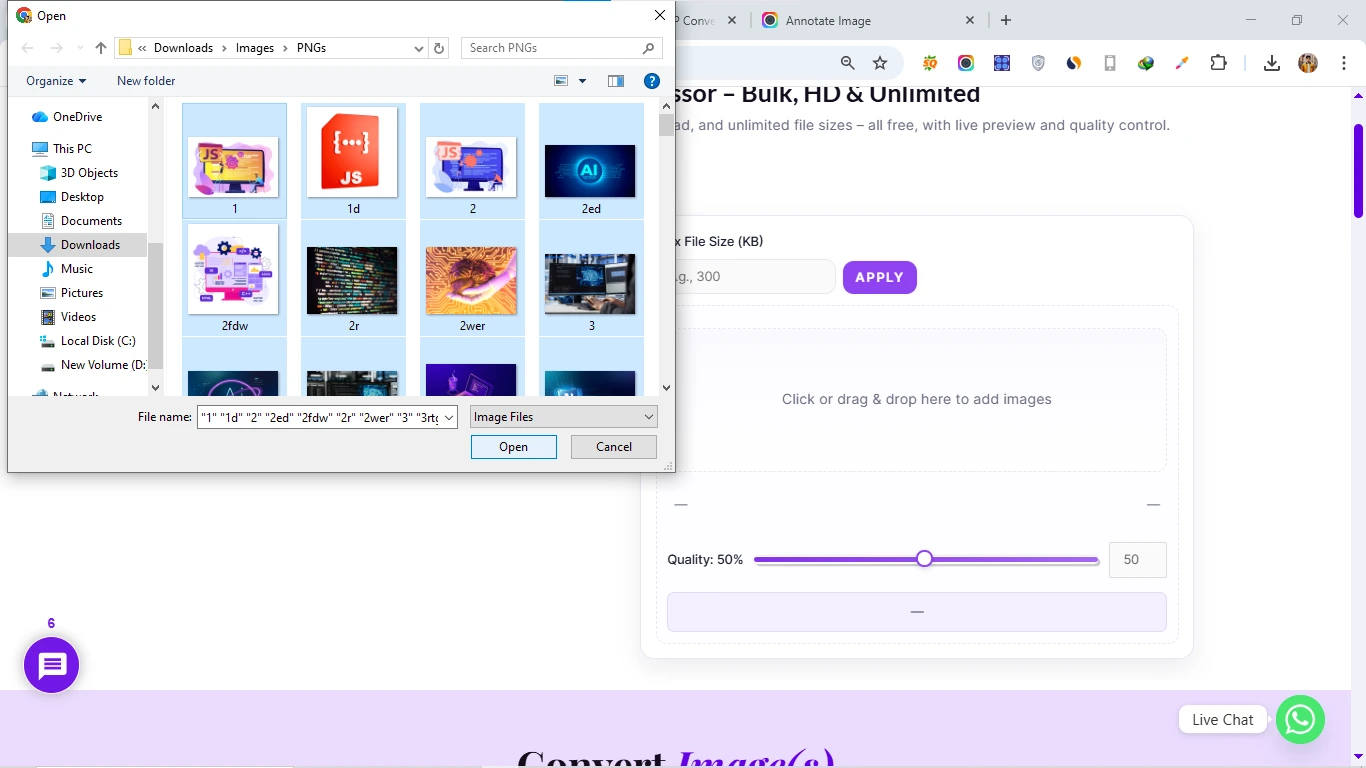
The first thing you’ll notice is the "ADD" button. For Alex, this was the gateway to efficiency. He could either click it to browse his 100+ images or simply use the "Click or drag & drop here to add images" area. Unlike other tools that lag when you add more than ten files, TheSoftCo handled its massive batch with ease. Add Images according to Your Browser's Performance.
Once added, the images appeared in a neat list. Alex loved the "RESET" button—a small but vital feature. If he accidentally uploaded the wrong folder, he didn't have to refresh the page and lose his settings; he could just hit reset and start fresh.
The Advanced Filter Panel (A Unique Edge)
This is where Alex realized TheSoftCo is different. Most compressors just give you a pile of files. TheSoftCo includes a "FILTER" dropdown that allows Alex to sort his 119 images in multiple ways:
- A-Z / Z-A: Perfect for keeping track of specific article images.
- Biggest First: Alex used this to target the "heavy hitters" first—the images that were hurting his site speed the most.
- Smallest First: To quickly clear out the smaller files.
This level of organization is rare in free tools. It allowed Alex to manage his "Bulk" batch like a pro, ensuring not a single image was left unoptimized.

Chapter 4: Precision Compression with Quality Control
Alex knew that compression is a balancing act. If you compress too much, the image looks like a blurry mess. If you compress too little, the file stays heavy. TheSoftCo’s Settings Panel gave him the surgical precision he needed.
The Quality Slider & Max File Size
In the center of the UI, Alex found the Quality Slider. By default, it was set to 50%, which is often the "sweet spot" for web images. But Alex was a perfectionist. He could adjust the slider and see the results in real-time.
Even more impressive was the "Max File Size (KB)" field. Alex had a strict rule for his blog: no image should be over 100KB. He simply typed "100" into the box and hit "APPLY." The tool automatically calculated the best compression to meet his specific requirement. No guesswork, just results.
The Live Preview Comparison
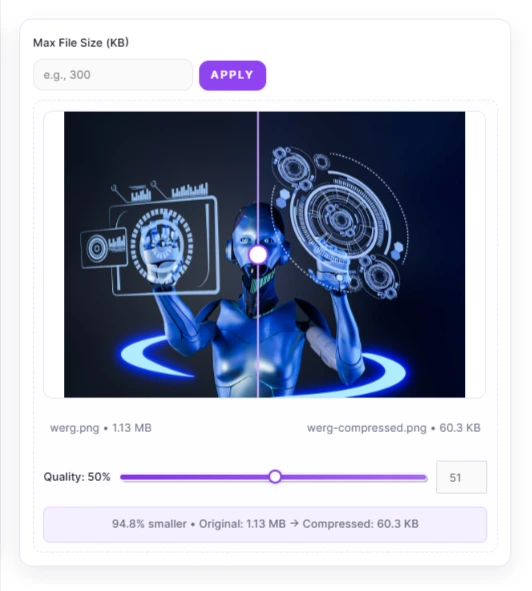
Before hitting the final button, Alex looked at the Live Preview. The tool showed his original image side-by-side with the compressed version. He could see that the original was 1.13 MB and the compressed version was only 60.3 KB.
The text at the bottom confirmed the victory: "94.8% smaller." And the best part? The visual quality was identical. Alex realized he was effectively doubling his website’s loading speed without sacrificing a single pixel of beauty.
Chapter 5: The 1-Click Execution (Bulk Power)
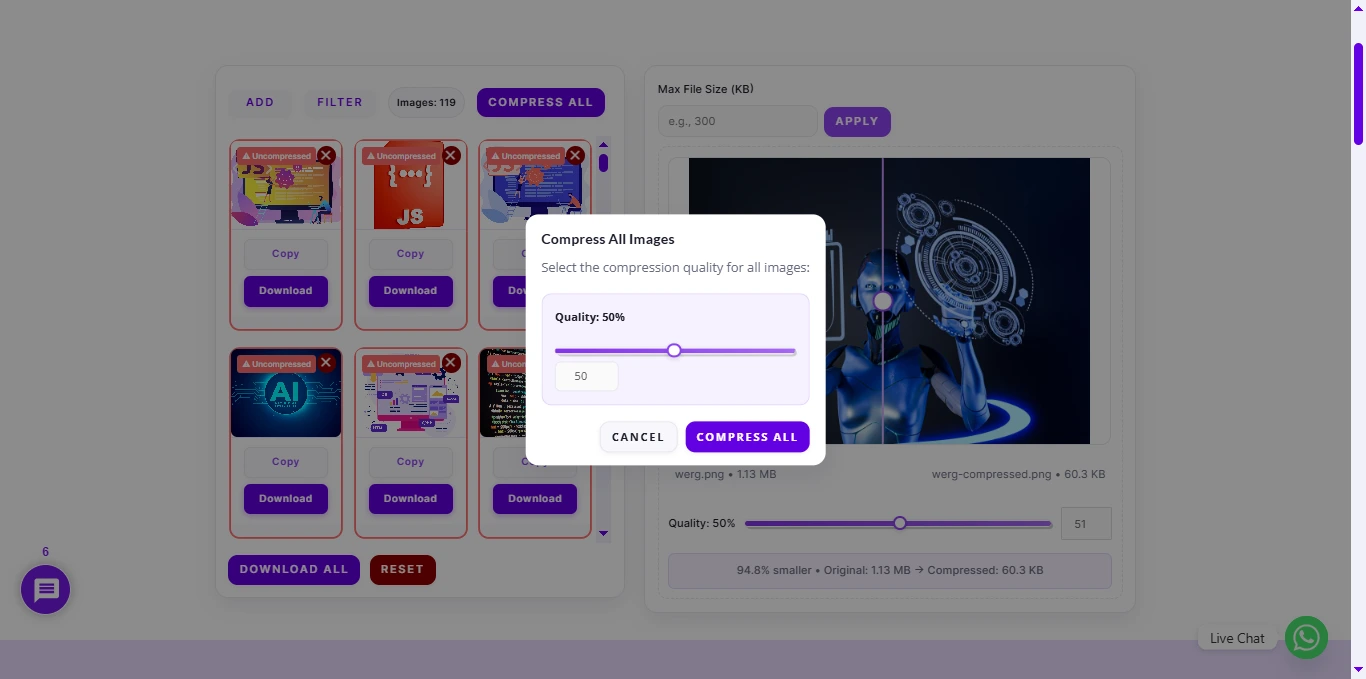
With all his settings in place and his 119 images filtered and ready, it was time for the final step. Alex didn't have to click "Compress" 119 times. He simply hit the large, purple "COMPRESS ALL" button.
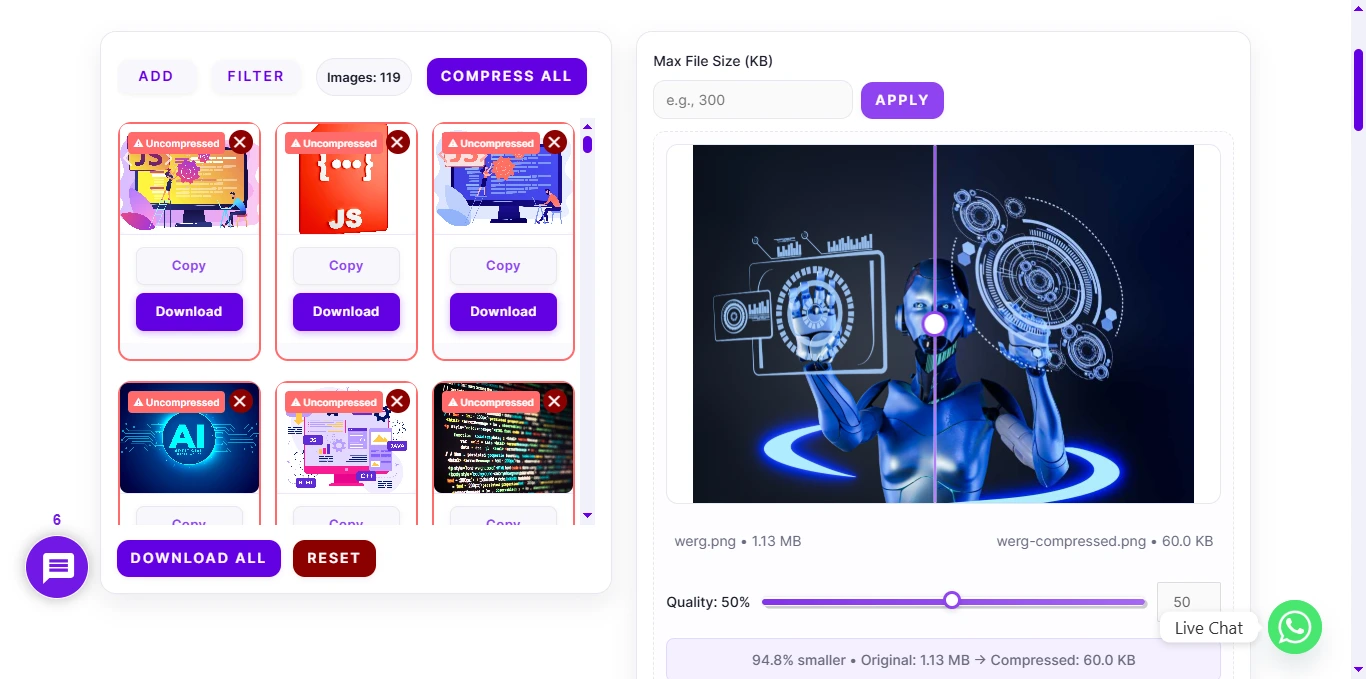
A pop-up appeared, asking him to confirm his chosen quality (50% in this case). He clicked "COMPRESS ALL" again, and the engine roared to life. Because the tool uses parallel processing, the entire batch was finished in seconds.
The Zip Format Download
Once the processing was done, the "DOWNLOAD ALL" button turned bright purple. Alex clicked it once, and instead of 119 individual download prompts, he received a single, neatly organized Zip file. This saved him from the nightmare of losing files in his "Downloads" folder. Every image was there, compressed, renamed, and ready for WordPress.
Chapter 6: Why This Matters for Your Business Growth
Alex’s journey wasn't just about saving a few kilobytes; it was about building a sustainable business. In 2026, user experience is the primary ranking factor. By using a free, unlimited tool, Alex saved money that he could now reinvest.
He started thinking about his next steps. Now that his site was fast, he could focus on scaling. He revisited the Ultimate Guide to Google Maps Leads Extraction to find new sponsors for his blog. He knew that a fast site would convert those leads much better than a slow one.
Alex also realized that the world of web formats is constantly changing. Sometimes he needed to change WebP to PNG for specific print projects, and he knew TheSoftCo had him covered for that, too.
Conclusion: Don’t Let Limits Slow You Down
Alex’s story ends with a 100/100 score on PageSpeed Insights. His website, alextech.dev, is now a lightning-fast destination for tech lovers. He no longer fears the "Bulk" upload. He knows that with the right tool, even 500 images can be compressed in a single click.
If you are a creator, a developer, or a business owner, take a page out of Alex's book. Stop settling for tools that limit your potential. Whether you need to convert or compress, choose a platform that respects your time and your privacy.
Watch the Full Video Tutorial!
We are currently working on a dedicated YouTube Video Tutorial where we recreate Alex's challenge live! We’ll show you the exact screen recordings of compressing 100+ images in real-time. Once published, we will embed the video right here so you can see the 1-click magic in action. Stay tuned!
Frequently Asked Questions (FAQ)
No, our tool reduces the file size by optimizing the data within the image, keeping the original resolution intact unless you choose to resize it.
Exactly. Whether you have 10 images or 200, you can process them all in one go. We believe in empowering creators, not limiting them. The Tool is browser-based and adds images according to your browser's performance.
Yes! TheSoftCo Image Compressor is built to handle multiple formats in a single batch, making it the ultimate tool for diverse projects.
You simply set your desired limit (e.g., 50KB), and the tool automatically adjusts the compression levels for each image in the batch to try to meet that target.
Join the Conversation
Share your perspective, ask thoughtful questions, or leave constructive feedback about this article.