

How to Change WebP to PNG: The Ultimate Guide to Fixing Image Compatibility Issues
In the fast-paced digital world of 2026, we are often told that “newer is better.” We have faster processors, AI that can write code, and internet speeds that were unimaginable a decade ago. However, sometimes technology moves too fast for its own good, leaving everyday users caught in the crossfire of “next-gen” formats that don’t interoperate well with one another.
If you’ve ever tried to change WebP to PNG only to be met with errors, corrupted files, or lost transparency, you aren’t alone. This guide is your definitive Problem Solver.
The Digital Dead-End: Why Your “Perfect” Image Won’t Open (A Personal Story)
The Friday Night Deadline and the File That Refused to Cooperate
Let’s talk about Alex. It’s a rainy Friday night in early 2026. Alex is a talented freelance graphic designer working on a high-stakes branding project for a new eco-friendly startup. The clock is ticking toward midnight, the deadline for the final presentation.
He finds the perfect high-resolution icon on a Creative Commons site—a beautiful, minimalist leaf with a transparent background. He right-clicks, saves it, and sees the extension: .webp.
“No worries,” Alex thinks, “I’ll just drag it into Photoshop.” The result? A blunt error message: “Unsupported Format: .webp.” Alex tries opening it in his presentation software. The image appears, but the beautiful transparency is gone, replaced by a solid, ugly black box. He tries to change from webp to png by simply renaming the file extension in his folder—a desperate move we’ve all tried. Now, the file won’t open at all.
This is the reality for millions of users. We are stuck in a transition period where the web speaks one language (WebP), but our professional tools and creative hearts speak another (PNG). Alex’s frustration isn’t about the technology; it’s about the lost hour of sleep, the stress of the deadline, and the feeling that a simple file format is standing between him and success.
Why Generic “Save As” Tricks Often Fail
Most people think they can outsmart the system. They try to “Save As” directly from the browser or use basic paint applications to re-save the file. However, these methods often strip away the “Alpha Channel” (the layer that handles transparency). When you try to change from WebP to PNG using substandard methods, you often end up with “artifacts”—tiny pixelated dots around your image—or a significant loss in color depth.
The Frustration of Modern Web Formats vs. Legacy Software
The core of the problem lies in the gap between the internet and the desktop. Chrome, Safari, and Edge love WebP because it’s small and fast. But your 5-year-old version of Illustrator, your office printer’s software, or even some social media uploaders in 2026 still view WebP as a “foreign” entity. This mismatch is why the need to change WebP to PNG is more relevant today than ever.
Understanding the “Enemy”: What Exactly is a WebP File?
The History of WebP: Who Created It and Why?
To solve a problem, you must understand its origin. WebP wasn’t created to annoy designers; it was created to save the internet. Back in 2010, Google recognized that images accounted for over 60% of the total data transferred on a webpage. If they could make images smaller without losing quality, the whole world would browse faster.
Google’s Vision: How WebP Solved the Internet’s Speed Problem
In 2010, Google acquired a company called On2 Technologies. They took the video compression technology (VP8) and applied it to still images. By using “predictive coding,” WebP looks at neighboring pixels to predict what the next pixel will be, only storing the “difference.” This made files 25-34% smaller than JPEGs and PNGs.
Want to dive deeper into the technical side of WebP images?
- The 2010 Original Announcement of WebP – Learn how Google integrated On2’s VP8 technology to revolutionize web speeds.
- Read on Google For Developers News by Google – Learn What Google Said About On2’s VP8 Technology.
Did you know WebP is actually just a single frame of a video? Discover the 2010 acquisition that saved the web billions of GBs in bandwidth – The Secret History of WebP – Read our full breakdown of how a video codec became the world’s most controversial image format.
The 2010 Breakthrough: Why WebP Was Originally Called the “JPEG Killer”
When it launched, the tech world was buzzing. Google claimed they had created a format that had the transparency of a PNG and the small size of a JPEG. It was touted as the “JPEG Killer.” However, they forgot one thing: the ecosystem. While Google controlled the browser, it didn’t control the millions of pieces of software used to edit, print, and view images offline.
The Technical Trade-off: Lossy vs. Lossless WebP Compression
WebP is a hybrid. It can be:
- Lossy: Great for photos, tiny file size, but loses some data.
- Lossless: Keeps every pixel perfect, but the file size is larger. The problem is that most websites use “Lossy” WebP to save speed, which is exactly why you need to convert WebP to PNG when you want to use that image for professional work where quality is non-negotiable.
The Problem Solver: Why We Still Need to Change from WebP to PNG in 2026
Compatibility Issues: The Main Reason for WebP To PNG Conversion
Even in 2026, compatibility remains the “Achilles’ heel” of WebP. If you are sending a portfolio to a client or a resume to an employer, you cannot take the risk that their system won’t open your file. PNG is the safe bet. It is the “Universal Language” of digital imagery.
Why Professional Editing Suites (Photoshop, Illustrator) Still Struggle with Raw WebP
While newer versions of Adobe Creative Cloud have added WebP support, many designers prefer to work with PNG because of how it handles layers and metadata. WebP compression can sometimes cause “banding” in gradients, which becomes a nightmare during high-end photo retouching.
Social Media & Email Barriers: When Platforms Reject Next-Gen Formats
Have you ever tried to upload a WebP image as a custom thumbnail or a profile picture, only to see “Invalid File Format”? Many legacy servers and even modern apps like certain versions of Discord or older email clients still struggle to render WebP correctly. To avoid the “broken image” icon, you must change from WebP to PNG.
The Transparency Trap: Why WebP Alpha Channels Can Break Your Design
This is the most common “Alex” scenario. You download a logo that looks transparent, but when you put it on a dark background in your PowerPoint or Canva project, it has a white or black border. This happens because WebP’s transparency handling is different from PNG’s standard 8-bit or 24-bit Alpha channels.
The PNG Hero: Why This Format Remains the Industry Standard
The Universal Language: Why Every Device Loves PNG
If WebP is the fast-talking newcomer, PNG is the wise old king. Developed in 1996, Portable Network Graphics (PNG) was created to be an open-source alternative to GIF. Since then, it has become the standard for everything that requires quality over speed.
Transparency Without Compromise: The Power of 24-bit Color
Unlike other formats, PNG-24 supports over 16 million colors and maintains crisp, clear transparency. This is vital for:
- Logo design.
- Website UI elements (buttons, icons).
- Layered digital art.
Print vs. Web: Why You Must Change From WebP to PNG for Physical Media
You should never send a WebP file to a professional printer. Printers work with high-density pixels, and WebP’s compression algorithms can cause “artifacts” that look terrible when printed on a physical banner or t-shirt. Change webp to png to ensure that what you see on the screen is what you get on the paper.
Metadata Preservation: Keeping Your Image Data Intact
PNGs are excellent at holding onto “Metadata”—information about the camera, the date, and the copyright. WebP often strips this data to save space. For professional photographers, keeping this data is a matter of legal protection.
How to Change WebP To PNG: A Step-by-Step Tutorial
Introducing Our WEBP TO PNG Converter: Fast, Secure, Bulk Conversion, and Free
We realized that users don’t want a lecture; they want a solution. TheSoftCo WEBP TO PNG Converter was built to solve the “Alex Problem.” It is optimized for 2026 speeds, ensuring your privacy is protected while delivering pixel-perfect results.
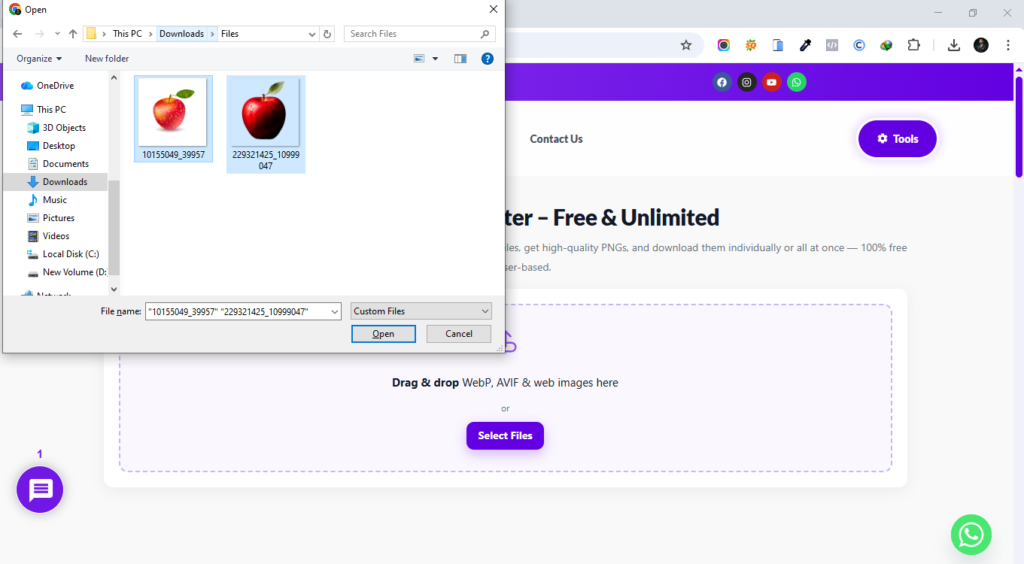
Step 1: Uploading Your Files (Drag-and-Drop Efficiency)
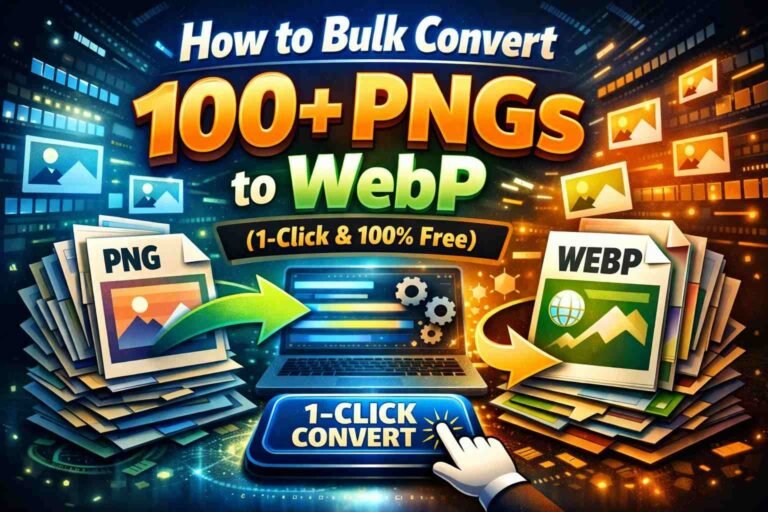
Simply open our tool and drag your .webp files into the box. You don’t need to install any heavy software or plugins. Whether it’s one file or a hundred, our system handles it.
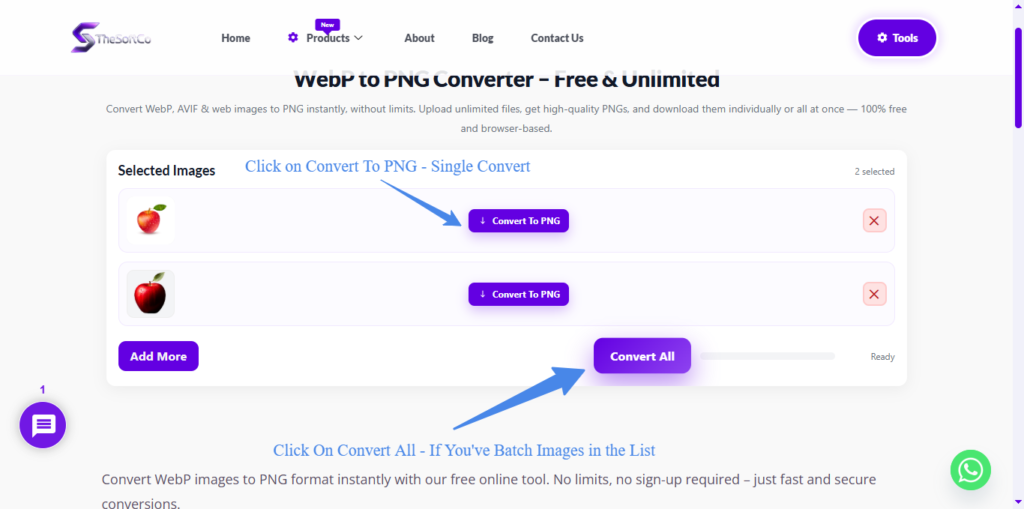
Step 2: Start Converting Images
If you’ve Only One Image in the list, click on “Convert To PNG“. The Tool Will Convert Your WebP To PNG. For bulk images, click on “Convert All” The tool will convert all images at once.
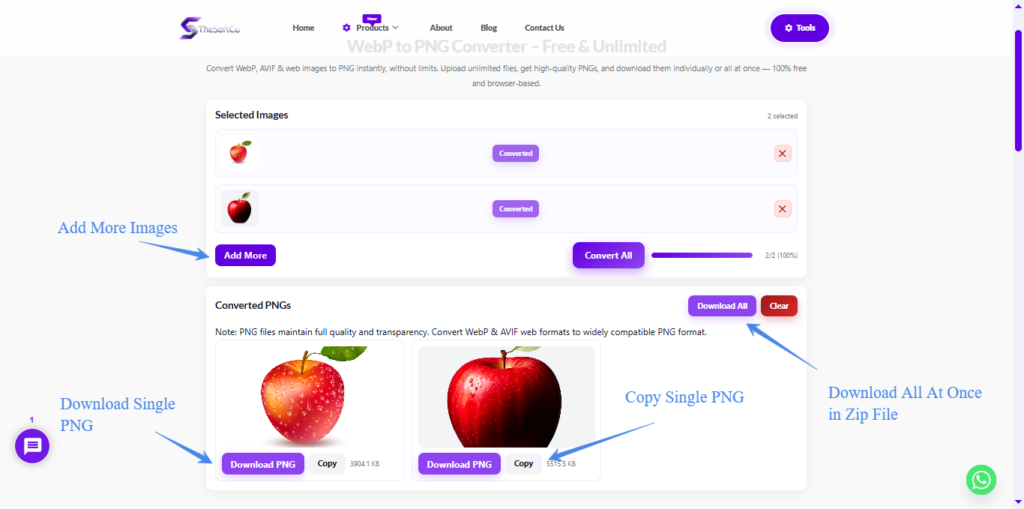
Step 3: Start Downloading Images
After converting the image, You Can Download or copy a single image. For Bulk Images, click on “Download All PNGs” in Bulk in zip format. You can also add more images by clicking on the “Add More” Button.
WebP vs. PNG: A Side-by-Side Comparison for 2026
| Feature | WebP (The Specialist) | PNG (The Hero) |
| Best Use Case | Website loading speed | Editing, Printing, Logos |
| Transparency | Good (but buggy in some apps) | Excellent (Industry Standard) |
| File Size | Very Small (Highly Compressed) | Larger (Lossless Quality) |
| Compatibility | Browsers & Modern Apps only | Every device since 1996 |
| Metadata | Limited | Comprehensive |
| Ease of Use | Requires conversion for editing | Ready to use everywhere |
File Size vs. Flexibility: The Great Debate
WebP wins on size, but PNG wins on flexibility. In 2026, storage is cheap, but time is expensive. Don’t waste time troubleshooting a WebP file; just convert it.
Which Format is Better for SEO in 2026?
For your website’s loading speed, WebP is better. However, for Image Search SEO, high-quality PNGs often rank better in Google Images because they provide more visual data for AI crawlers to “read.”
Troubleshooting Common Issues When You Change WebP to PNG
Why Does My Converted PNG Look Blurry?
If your output is blurry, it’s likely because the original WebP was “Lossy” (highly compressed). Our tool uses “Upscaling Algorithms” to try to smooth out these pixels, but always tries to start with the highest quality WebP possible.
Managing Large File Sizes After Converting from WebP
Since PNG is lossless, a 100KB WebP might become a 500KB PNG. If the file is too large for email, you can use our “Image Compressor – Its 100% Free & Bulk Supported” tool after the conversion.
Frequently Asked Questions (The Snippet Zone)
How do I change WebP to PNG without losing quality?
To change WebP to PNG without losing quality, you must use a lossless conversion tool that supports PNG-24. TheSoftCo WEBP TO PNG converter ensures that every pixel from the original WebP is mapped correctly to the new PNG file, maintaining 100% of the visual data.
Why do my images keep saving as WebP instead of PNG?
Your images save as WebP because most modern browsers (Chrome, Edge) are programmed to download the most “efficient” version of an image to save data. To stop this, you can use a browser extension or simply use our webp png convert tool after downloading.
Is it safe to change from WebP to PNG online?
Yes, it is safe as long as you use a trusted tool. Our converter uses SSL encryption and using browser based processing, which means every file you upload will be uploaded to your browser. They will be deleted when you clear or reset our tool. You’re in control. It’s Safe & Secure.
Can I convert multiple WebP files to PNG at once?
Absolutely. Our “Batch Processing” feature allows you to upload unlimited images at once, according to your browser performance. This is the fastest way to change from WebP to PNG when working on large projects with multiple assets.
Does converting WebP to PNG increase file size?
Yes, converting WebP to PNG usually increases file size because PNG is a “Lossless” format. It stores more data to ensure higher quality and universal compatibility, which naturally requires more disk space than the compressed WebP format.
Why can’t I open WebP files in Photoshop 2026?
Even in 2026, some versions of Photoshop require a specific “WebPShop” plugin, or the file itself may have been saved with a “Lossy Alpha” that Photoshop’s engine doesn’t recognize. Converting to PNG is the fastest workaround to this common glitch.
What is the fastest way to change from WebP to PNG on Windows 11?
The fastest way is to use an online converter. While Windows 11 has built-in support for viewing WebP, it does not have a native “right-click to convert” feature. Our tool provides a faster, browser-based solution without needing software installation.
Is PNG better than WebP for transparent backgrounds?
PNG is generally considered better for transparency in professional workflows. While WebP supports transparency, PNG’s 24-bit Alpha channel is more widely supported across all design, office, and printing software, ensuring no “black box” errors.
How to convert WebP To PNG on a mobile phone?
To convert WebP to PNG on mobile, simply open TheSoftCo WebP To PNG Converter Tool in your Safari or Chrome mobile browser, upload the image(a) from your photo gallery, and hit convert. You can save the resulting PNG directly to your camera roll.
Will converting images hurt my website’s SEO?
No, it won’t hurt your SEO, but it might slightly affect your “Core Web Vitals” if the PNG files are very large. We recommend using PNGs for essential design elements and logos, while using WebP for large background photos to balance quality and speed.
Final Verdict: When Should You Keep WebP and When Should You Convert?
The world of 2026 is all about choosing the right tool for the right job.
- Keep WebP if you are a web developer trying to get a 99/100 score on Google PageSpeed Insights.
- Change webp to png if you are a designer, a student, a marketer, or anyone who needs their images to work everywhere, every time, without fail.
Don’t let a file extension dictate your productivity. Like Ali, you have deadlines to meet and visions to create.
Final Call to Action: Try Our Free WebP to PNG Converter Today
Stop struggling with “Unsupported Format” errors. Use our Problem Solver tool now to change WebP to PNG in seconds. Fast, free, and designed for humans—not just browsers.