

The Ultimate Guide to B2B Lead Generation: Mastering TheSoftCo Google Maps Leads Extractor
In the modern business landscape, data isn’t just an asset; it’s the fuel that drives growth. However, for many startups, freelancers, and small agencies, the “fuel” is often too expensive. Most lead generation tools carry heavy price tags, complex setups, and restrictive credit systems.
At TheSoftCo, we believe that the tools to build a business should be accessible to everyone. That is why we built the Google Maps Leads Extractor. This isn’t just another scraper; it’s a complete lead-to-outreach ecosystem.
In this exhaustive guide, we will take you through a “Masterclass” on how to use this tool to build a high-converting lead pipeline from scratch.
Setting the Stage: A Real-World Lead Gen Strategy
To understand the power of this tool, let’s look at it through the eyes of a professional.
The Persona: Meet Alex, a freelance Website Developer. Alex is skilled at building high-performance sites, but he needs clients. He knows that thousands of local businesses in big cities either have no website or have one that hasn’t been updated since 2010.
The Goal: Alex wants to find 50 high-quality leads in the restaurant niche in New York, qualify them, and send them a personalized pitch—all within 30 minutes.
Initiating the “Search of Power”
Alex navigates to thesoftco.com/products/tools/google-maps-leads-extractor.
The interface is clean and distraction-free. Alex enters his target parameters:
- Keyword:
Restaurants in New York - Action: He hits the Search button.
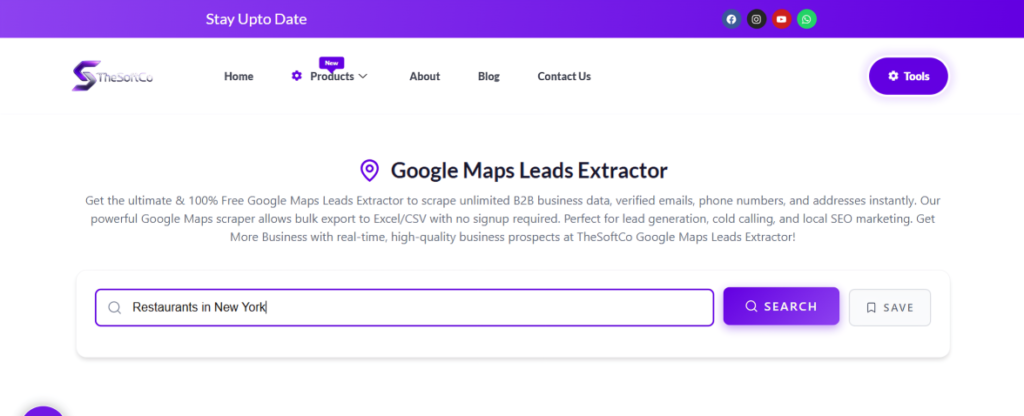
Immediately, the tool begins its work. It interfaces with Google Maps data to pull real-time, verified business listings. Unlike static databases that might be months old, this is “live” data.
The Magic of Data Persistence (Local Storage)
One of the most innovative features Alex notices is the Recent Searches and Automatic Saving functionality (if the search isn’t saved, you can save it by clicking on the save button near the search box).
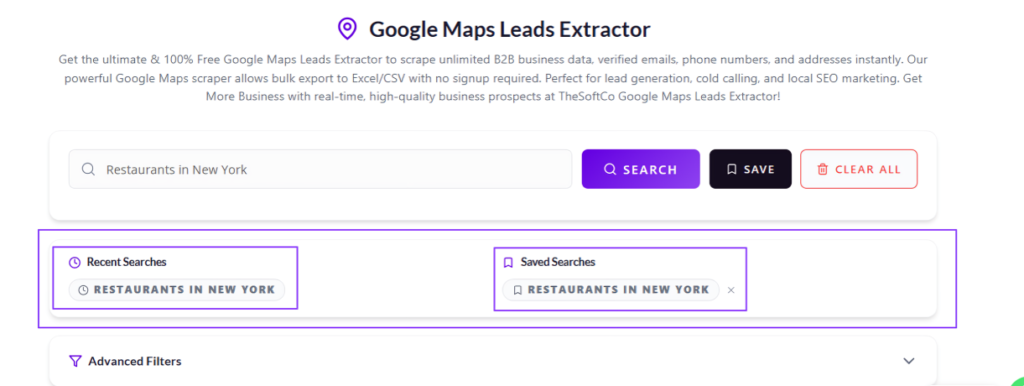
As a busy developer, Alex often gets interrupted by client calls. In most web-based tools, refreshing the page means losing all your unsaved work. But TheSoftCo Leads Extractor is built differently. It utilizes your browser’s local memory.
- Recent Searches: His search for “Restaurants in New York” is instantly logged. He can jump back to this search anytime.
- Data Safety: Every lead extracted stays in the “Result Section” even if he closes the tab or his computer restarts. The data only disappears if Alex chooses to hit the “Clear All” button. This gives him the peace of mind to work at his own pace.
Mastering Advanced Filters (The “Goldmine” Strategy)
This is where the tool distinguishes between amateurs and pros. Alex doesn’t want to call every restaurant; he only wants the ones where he can add value.
He opens the Advanced Filters section and applies the following logic:
The “No Website” Filter (The Ultimate USP)
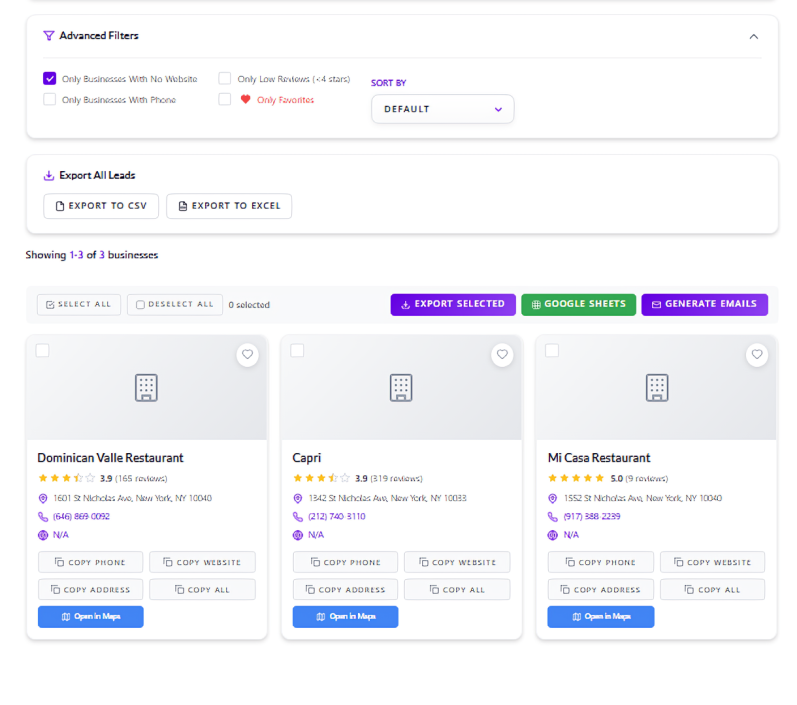
Alex checks the box: “Only Businesses With No Website”.

In an instant, the list of hundreds of restaurants is narrowed down to the “Goldmine.” These are businesses that exist, have customers (as seen by their reviews), but have zero digital presence. To a Web Developer, these aren’t just leads—they are high-probability sales.
The “Reputation Management” Filter
Alex also sees the “Only Low Reviews (<4 stars)” filter. While he’s a developer, he realizes he could also offer SEO and Reputation Management services to these businesses to help them improve their ranking.
Qualification and “My Favorites”
Alex begins scrolling through the results. Each lead card provides a wealth of information:
- Business Name & Category
- Phone Number
- Full Physical Address
- Rating & Review Count
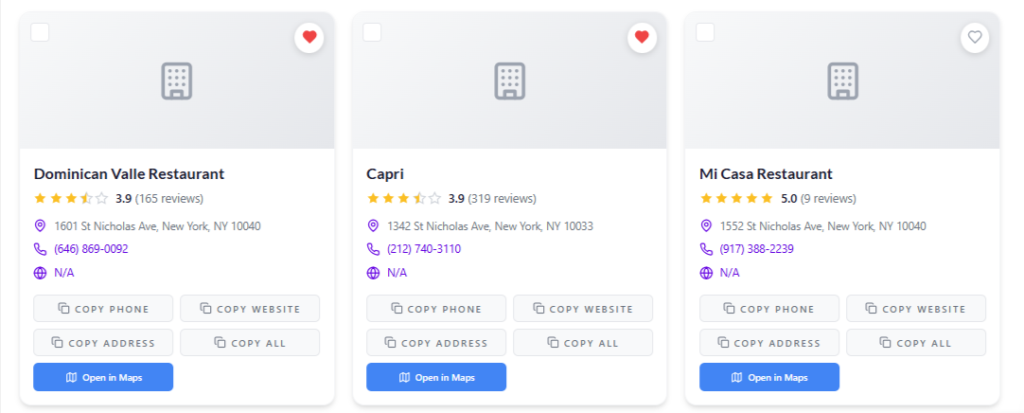
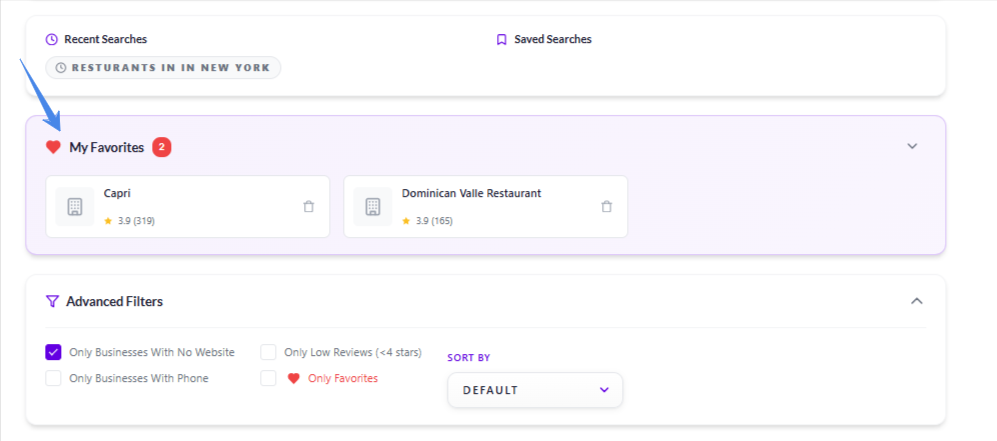
After applying the Advanced Filter, he sees “Dominican Valle Restaurant” and “Capri” both have over 100+ reviews but no website. He clicks the Heart Icon on these leads. They are immediately moved to his “My Favorites” section. This allows him to build a “Hot List” of leads he wants to prioritize for his daily outreach.
The Game-Changer — Email Template Generator
Now comes the hardest part of lead generation: Outreach. Most people fail here because they send generic, boring emails.
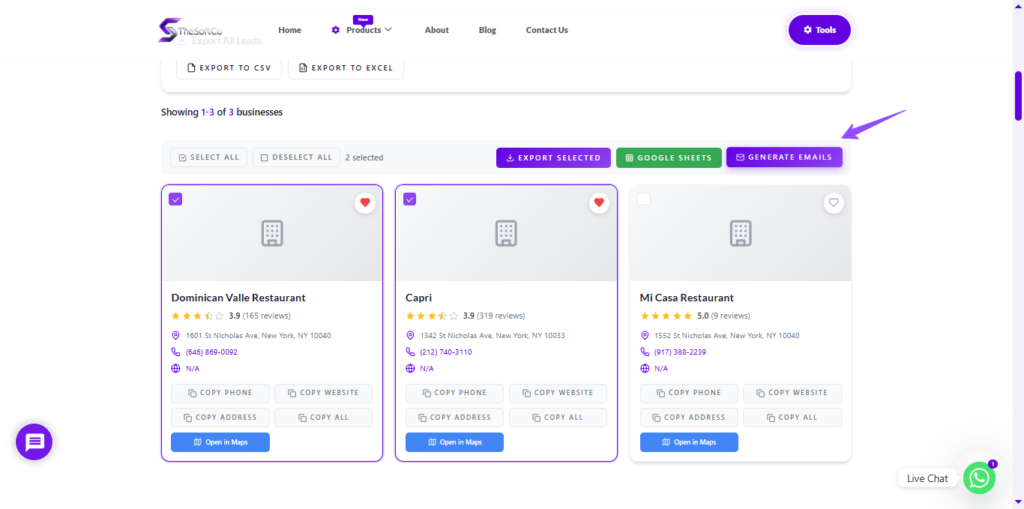
Alex selects his favorite leads and clicks “Generate Emails”.
A sophisticated pop-up appears. Alex fills in his details:
- Name: Alex
- Company: TheSoftCo
- Subject: Custom Website Proposal
He then selects a Template Style. He chooses “Services Offer”.
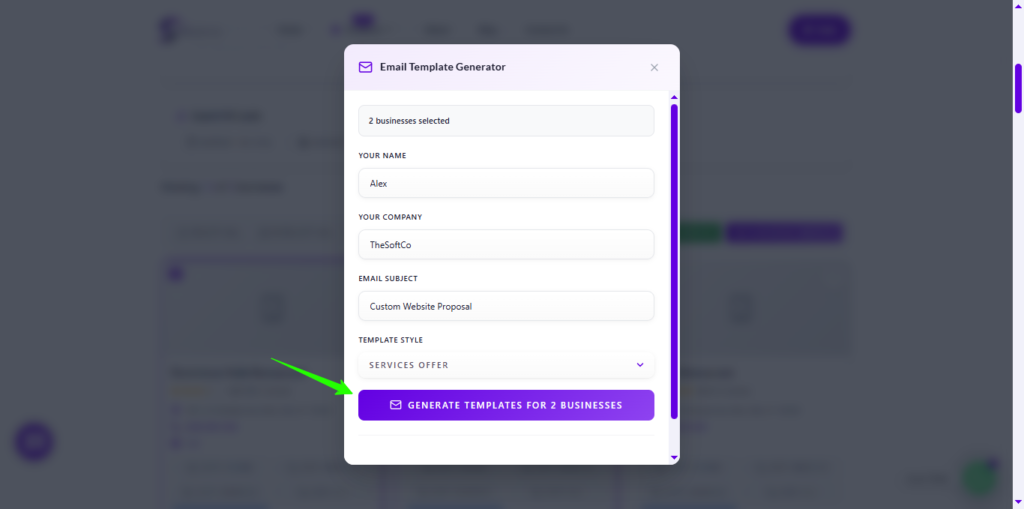
The Email Template Generator goes to work. It doesn’t just write a generic template; it merges the business’s specific data (like their name and niche) into a professional pitch.
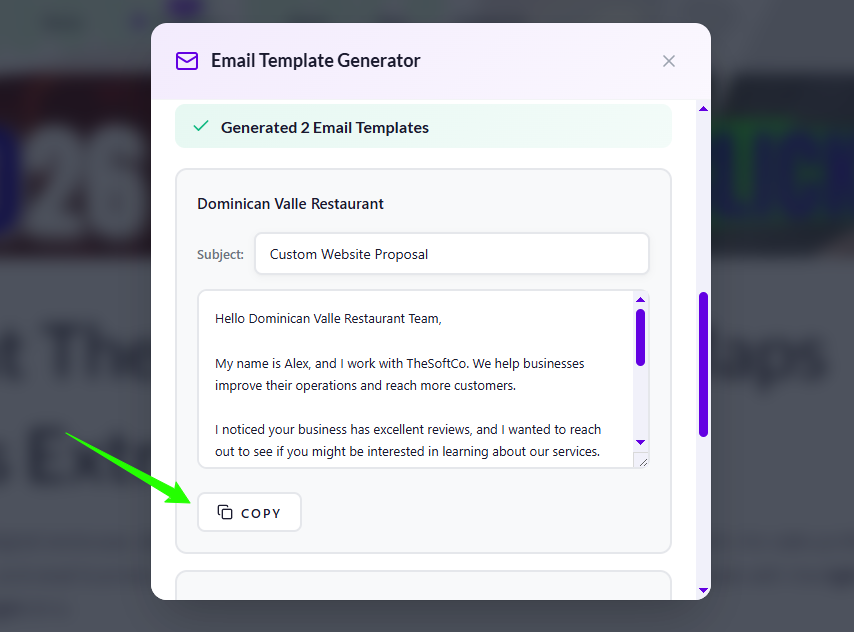
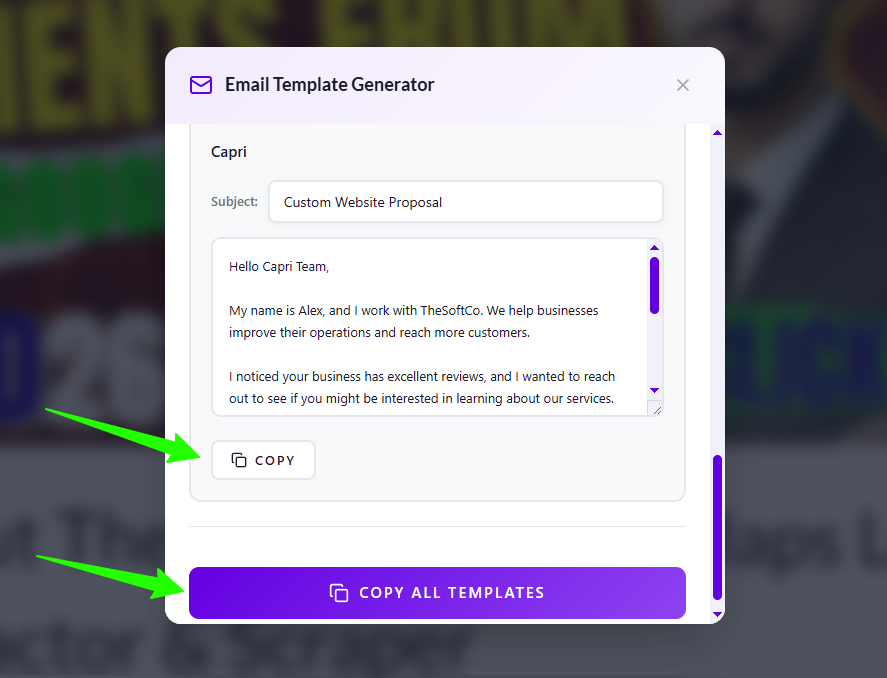
Alex can now copy these templates individually or Copy All to his clipboard. He has just saved hours of writing and personalization work.
Exporting for Scaling (Google Sheets & CSV)
Once Alex has his list of 50 leads, he needs to track them in his workflow. The tool offers three powerful export options:
- Export to CSV: Perfect for importing into a CRM like HubSpot or Salesforce.
- Export to Excel: Ideal for deep data analysis and sorting.
- Google Sheets Integration: With one click, Alex can send his selected leads to a Google Sheet. This is perfect for teams who need to collaborate on a shared lead list in real-time.
Comprehensive Feature Breakdown
To help you understand every corner of the tool, here is a detailed breakdown of its architecture:
| Feature | Description | Business Value |
| Bulk Extraction | Scrape 20 Businesses in one search. | Saves hours of manual labor. |
| Local Memory Persistence | Data stays in your browser until cleared. | Prevents data loss during interruptions. |
| No-Website Filter | Isolates businesses without an online presence. | Perfect for Web Devs and SEOs. |
| Email Generator | Mini Email Template Generator | Increases response rates and closes deals. |
| Multi-Format Export | CSV, Excel, and Google Sheets support. | Seamless integration with your existing workflow. |
| Quick Action Buttons | Copy Phone, Website, Address, or Open in Maps. | Instant access to data for cold calling. |
Watch the Video Tutorial
If you’re a visual learner, we’ve prepared a “Next Level” video tutorial that shows every step of this process in action. From setting up your first search to exporting your first 1,000 leads, this video covers it all.
Conclusion: Your Growth, Powered by TheSoftCo
Lead generation doesn’t have to be expensive, and it shouldn’t be a struggle. By using TheSoftCo Google Maps Leads Extractor, you are choosing a tool built by a startup, for startups.
Whether you are like Alex the Web Developer, or you’re an SEO expert, a Real Estate agent, or a Sales Manager, the power to find your next customer is now in your hands.
Ready to start? Head over to our tool page and generate your first list of leads today. Your next big client is just a search away.